
How to Update Subscription Payment MethodUpdated 4 months ago
Updating your TWW subscription payment method can be done in several different ways, depending on where your payment method is coming from.
If paying with a credit card:
1. Log into your customer account with your email and password.
If you get an error message saying "invalid credentials" or "wrong username/password," your account may not have been fully activated yet. Send an email to [email protected] and we can get that sorted for you!
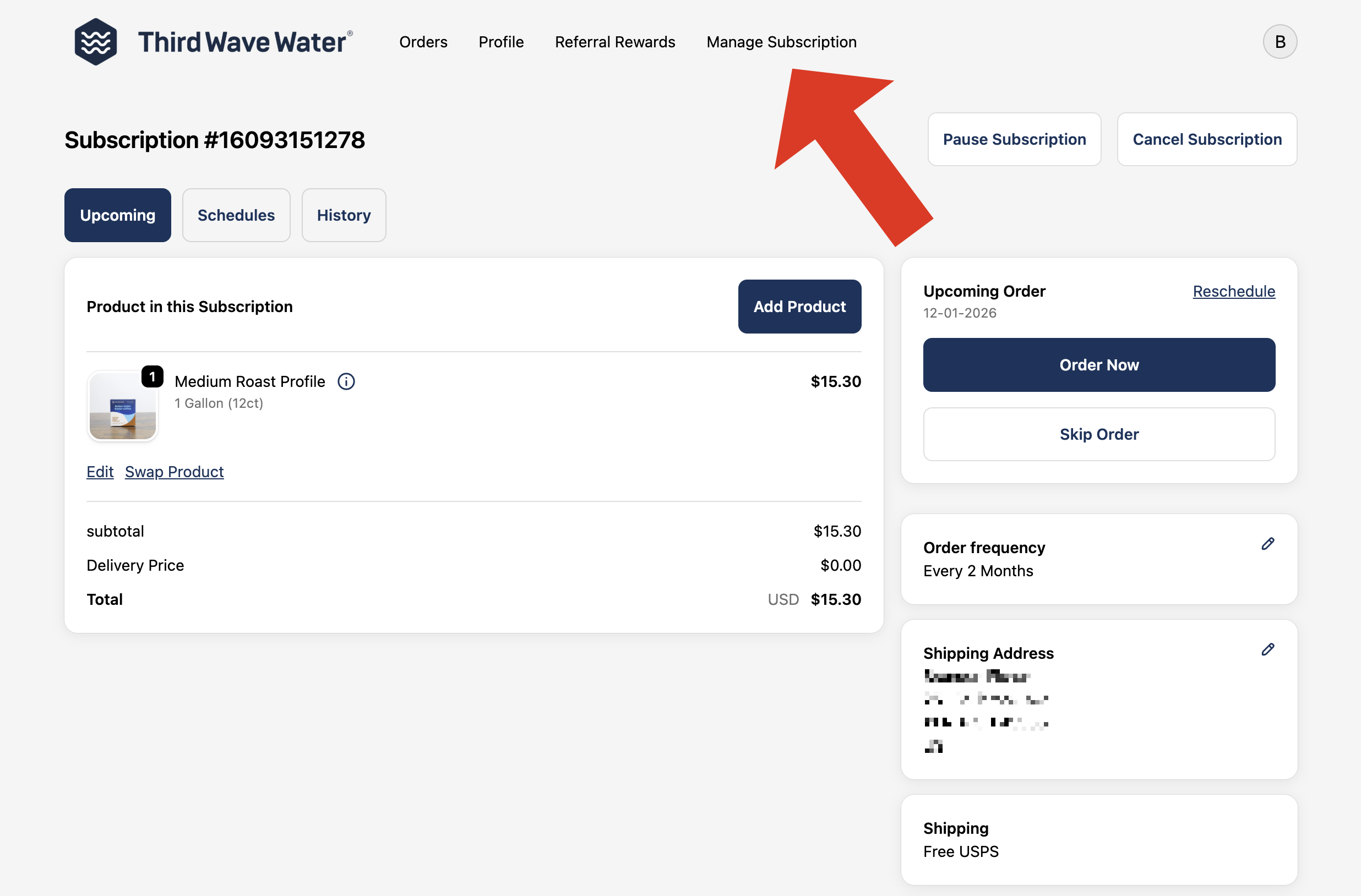
2. Click on the "Manage Subscription" button on the toolbar.
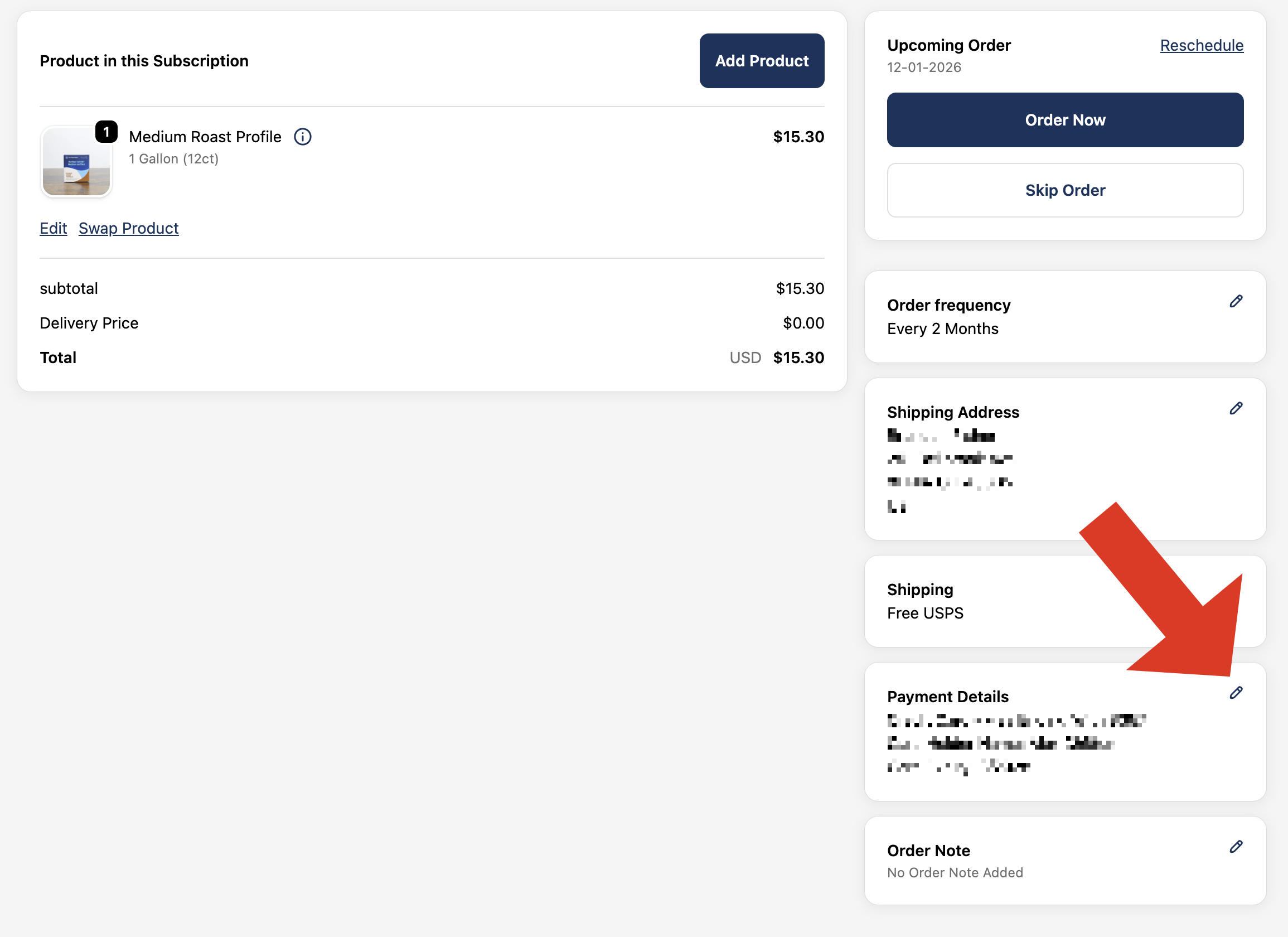
3. Scroll down under "Shipping" and you should see "Payment Details".
4. Click the "Edit" button, then you'll receive an email to update your payment method!
If paying through Shop Pay:
1. Sign in to your Shop Pay account (https://shop.app/)
2. Click your account icon.
3. In the "Account" tab, click "Subscriptions."
4. Click the subscription that you want to manage.
5. Click "Update payment method."
6. Select or add a new payment method for your subscription.
7. Click "Save."
NOTE: Changing your default payment method doesn't automatically update your existing subscriptions, so you need to update the payment method for each subscription individually.